
Set up takes about ten minutes, most of it creating the Google key. Questions? Contact support with your order number.
Requirements
- WordPress 5.0 or newer, WooCommerce 8.0 or newer. Tested with WordPress 7.1 and WooCommerce 11.3.
- PHP 7.4 or newer.
- A Google Cloud project with billing turned on.
Install the plugin
- Download
checkout-address-autocomplete-2.1.0.zipfrom Account → Downloads. Don't unzip it. - In WordPress, go to Plugins → Add New Plugin → Upload Plugin, choose the ZIP, click Install Now, then Activate.
Activate your license
- On this site, open Account → Licenses and click Show license key. Copy the key; it starts with
wx_. - In WordPress, go to WooCommerce → Address Autocomplete License, paste the key and click Activate / replace key. The status changes to Active.
Each website domain uses one activation. To move the license, click Deactivate this website on the old site, or click Deactivate next to it in Account → Licenses.
Create a Google API key
- Open the Google Cloud console and create a project, or choose an existing one. Make sure billing is enabled.
- Under APIs & Services → Library, enable Maps JavaScript API and Places API (New).
- Under APIs & Services → Credentials, click Create credentials → API key.
- Edit the key and restrict it:
- Application restrictions: Websites. Add
https://yourstore.com/*(andhttps://www.yourstore.com/*if you use www). - API restrictions: Maps JavaScript API and Places API (New).
- Application restrictions: Websites. Add
- Copy the key.
This key is used in the visitor's browser, so the website restriction is what stops other sites from using it.
Configure the plugin
Go to WooCommerce → Address Autocomplete.
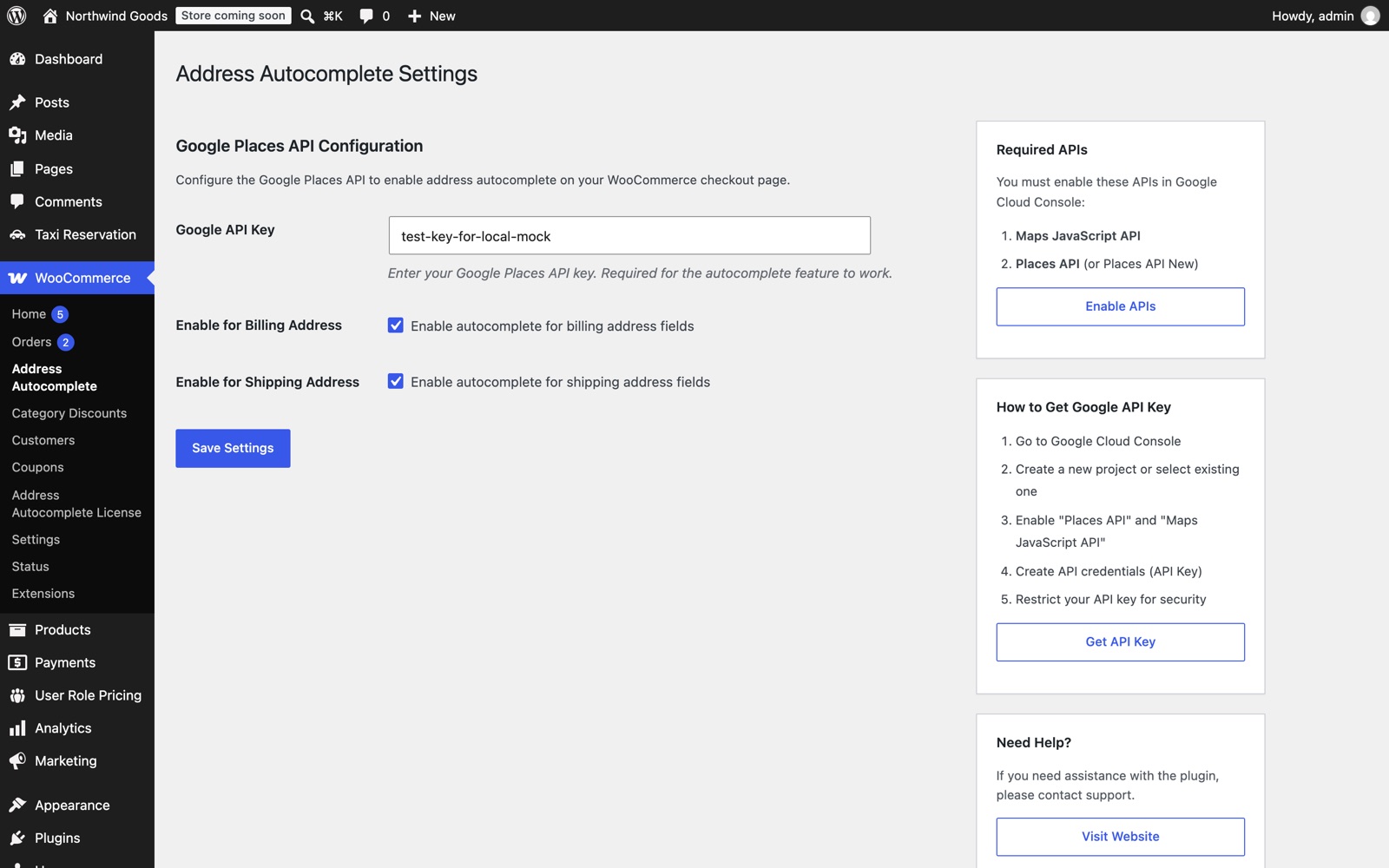
| Setting | What it does |
|---|---|
| Google API Key | The key you created above. |
| Enable billing address | Suggestions on the billing street address field. |
| Enable shipping address | Suggestions on the shipping street address field. |
Click Save Changes, then open your checkout and type the start of an address.
How it works at checkout
- The customer chooses their country (or WooCommerce preselects it).
- They type three or more characters in Address. Up to five suggestions in that country appear under the field.
- They click a suggestion, or use the arrow keys and press Enter.
- Street, apartment or unit, city, state or province, postcode and country are filled. The customer can still edit anything.
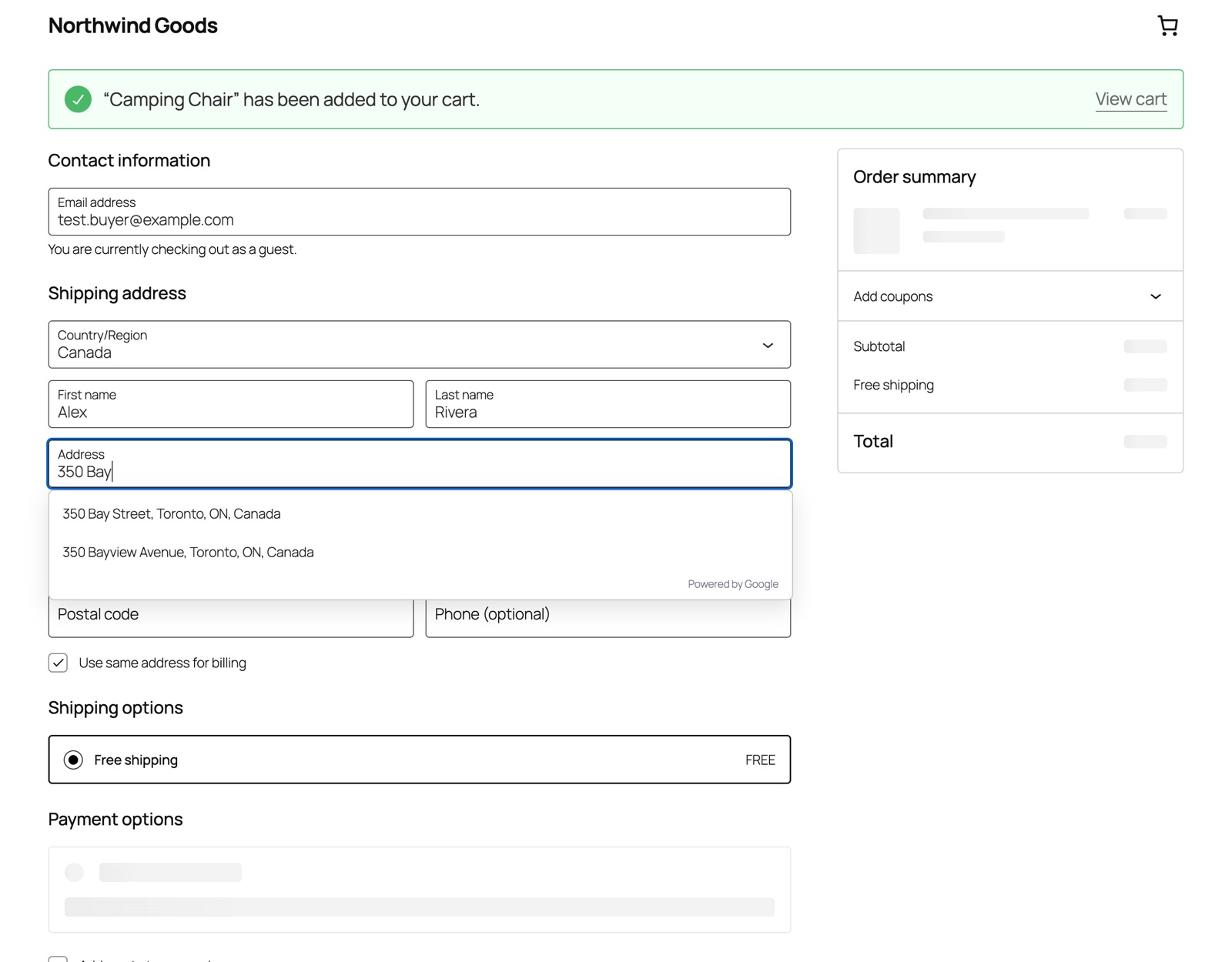
On the block checkout, the shipping address comes first; billing uses the same address unless the customer unticks Use same address for billing. On the classic checkout, billing comes first and shipping appears under Ship to a different address?.
Costs and Google billing
Each address search is a Google autocomplete session: the suggestions while typing, plus one place lookup when the customer picks an address. The plugin uses session tokens so Google bills them together. See Google Maps Platform pricing for current rates and the monthly free allowance. To control spend, set a budget alert and API quotas in the Google Cloud console.
Troubleshooting
No suggestions appear. Open your browser's developer console on the checkout page. Google's message tells you what's wrong:
- ApiNotActivatedMapError or API not enabled: enable Maps JavaScript API and Places API (New).
- RefererNotAllowedMapError: add your domain to the key's website restrictions, including
wwwif used. - BillingNotEnabledMapError: turn on billing for the Google Cloud project.
The state isn't filled. For a few countries Google's region name doesn't match WooCommerce's list. The customer can choose it from the list; everything else is still filled.
Suggestions are in the wrong country. Suggestions follow the selected country. Change the country first, then type the address.
Updates and uninstall
Updates appear in Dashboard → Updates while your license is active. Deactivating the plugin removes suggestions from checkout; deleting it removes its settings. Orders are never changed.
Changelog
2.1.0
- Works with the WooCommerce block checkout.
- Uses Google Places API (New), required for Google Cloud projects created since March 2025.
- Keyboard and screen-reader support.
- Country filled as a code; state matched to WooCommerce's list.
- Shop Managers can save settings.
- License activation and one-click updates.